

Docker has become one of the most popular containerization platforms, helping developers package applications along with their dependencies into lightweight, portable containers. Whether you're a beginner learning DevOps or an experienced developer managing production applications, knowing the right Docker command can significantly improve your productivity. Docker commands allow you to build images, create containers, monitor applications, manage storage, and automate deployments. Instead of manually configuring environments, Docker provides a consistent way to develop and deploy applications across Windows, Linux, macOS, and cloud platforms.
In this guide, you'll learn the top 20 Docker commands, understand when to use them, and see practical examples. We'll also cover common Dockerfile commands, the Docker build command, tips for using Docker with Windows, and how to perform docker image delete and docker image remove operations.
What Is a Docker Command?
A Docker command is an instruction executed through Docker's Command Line Interface (CLI) to interact with Docker Engine. These commands help developers create, run, inspect, stop, and manage containers and Docker images.
Whether you're building applications, testing software, or deploying services in production, Docker commands simplify container management and improve development workflows.
Top 20 Docker Commands
1. docker --version
The docker --version command displays the installed version of Docker on your system. It is the first command most users execute after installation to verify that Docker has been installed successfully.
Syntax
docker --version
Use Case: Verify Docker installation and check version compatibility.
2. docker info
The docker info command provides detailed information about your Docker installation. It displays the number of containers, images, storage drivers, CPU and memory usage, Docker Engine details, and system configuration.
Syntax
docker info
Use Case: Troubleshooting Docker configuration and viewing system information.
3. docker pull
The docker pull command downloads Docker images from Docker Hub or another container registry. Before you can run a container, you typically need to pull its image.
Syntax
docker pull nginx
Example
docker pull ubuntu
Use Case: Download official images like Ubuntu, MySQL, Redis, or Nginx.
4. docker images
The docker images command lists all Docker images stored on your local machine. It displays useful information such as the image name, tag, image ID, creation date, and image size.
Syntax
docker images
Use Case: View available images before creating containers.
5. docker build
The Docker build command creates a Docker image using instructions specified in a Dockerfile. Every modern Docker workflow starts by building an image before deployment.
Syntax
docker build -t myapp .
Explanation
- -t assigns a name (tag) to the image.
- . tells Docker to use the current directory.
Use Case: Package your application into a reusable Docker image.
6. docker run
The docker run command creates and starts a new container from a Docker image. It supports various options such as detached mode, environment variables, port mapping, and volume mounting.
Syntax
docker run nginx
Detached mode:
docker run -d nginx
Port mapping:
docker run -d -p 8080:80 nginx
Use Case: Launch applications inside containers.
7. docker ps
The docker ps command displays all currently running Docker containers. It helps administrators monitor active containers and verify that services are running correctly.
Syntax
docker ps
Show all containers:
docker ps -a
Use Case: Monitor running and stopped containers.
8. docker stop
The docker stop command gracefully shuts down a running container by sending a termination signal. It allows applications to close safely before the container stops.
Syntax
docker stop container_id
Use Case: Stop containers before updating or deleting them.
9. docker start
The docker start command starts an existing container that has previously been stopped. It resumes the container without creating a new one.
Syntax
docker start container_id
Use Case: Restart applications without rebuilding containers.
10. docker restart
The docker restart command stops and immediately starts a container in one step. It is commonly used after configuration changes or when an application becomes unresponsive.
Syntax
docker restart container_id
Use Case: Quickly reboot a container.
11. docker rm
The docker rm command removes stopped Docker containers from your system. Deleting unused containers helps free storage and keeps your Docker environment organized.
Syntax
docker rm container_id
Remove multiple containers:
docker rm id1 id2 id3
Use Case: Clean up unused containers.
12. docker logs
The docker logs command displays log messages generated by a running or stopped container. Developers use it to monitor application output and diagnose issues.
Syntax
docker logs container_id
Follow logs continuously:
docker logs -f container_id
Use Case: Debug applications and monitor runtime activity.
13. docker exec
The docker exec command executes commands inside a running container. It is particularly useful for accessing a shell to inspect files, install packages, or troubleshoot applications.
Syntax
docker exec -it container_id bash
Use Case: Open an interactive terminal inside a container.
14. docker cp
The docker cp command copies files between your host system and a Docker container. This is useful for transferring configuration files, logs, or application assets.
Syntax
Copy to a container:
docker cp file.txt container_id:/app
Copy from a container:
docker cp container_id:/app/log.txt .
Use Case: Move files without rebuilding the image.
15. docker rmi
The docker rmi command removes one or more Docker images from your local system. It is commonly referred to as the docker image remove or docker image delete command.
Syntax
docker rmi nginx
Use Case: Delete unused or outdated Docker images to reclaim disk space.
16. docker network ls
The docker network ls command lists all Docker networks available on your machine. Docker networks enable communication between multiple containers while maintaining isolation.
Syntax
docker network ls
Use Case: View and manage container networking.
17. docker volume ls
The docker volume ls command displays all Docker volumes. Volumes store persistent data independently of containers, ensuring that data remains available even after containers are deleted.
Syntax
docker volume ls
Use Case: Manage persistent storage.
18. docker system prune
The docker system prune command removes unused containers, images, build cache, and networks. Running it periodically helps recover valuable disk space.
Syntax
docker system prune
Remove everything:
docker system prune -a
Use Case: Clean up unused Docker resources.
19. docker inspect
The docker inspect command displays detailed configuration information about Docker objects in JSON format. It helps developers inspect networking, storage, environment variables, and other settings.
Syntax
docker inspect container_id
Use Case: Debug and analyze Docker resources.
20. docker top
The docker top command displays the processes currently running inside a container. It provides insights into application activity without logging into the container.
Syntax
docker top container_id
Use Case: Monitor processes inside containers.
Common Dockerfile Commands
A Dockerfile command defines the steps Docker follows while creating an image. Each instruction creates a new image layer and contributes to the final container environment.
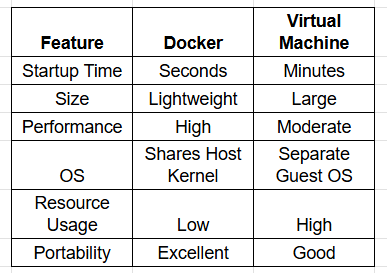
Example Dockerfile
FROM python:3.12
WORKDIR /app
COPY . .
RUN pip install -r requirements.txt
EXPOSE 5000
CMD ["python", "app.py"]
Using Docker with Windows
Running Docker with Windows is straightforward with Docker Desktop. Microsoft recommends using WSL 2 (Windows Subsystem for Linux) because it offers better performance and compatibility for Linux containers.
Steps to Install Docker on Windows
- Download Docker Desktop from the official Docker website.
- Enable WSL 2 or Hyper-V.
- Install Docker Desktop.
- Restart your computer if prompted.
- Open PowerShell or Command Prompt.
- Verify the installation:
docker --version
Docker Desktop supports both Linux and Windows containers, making it an excellent choice for local development and testing.
Best Practices for Using Docker Commands
- Use official and trusted Docker images.
- Keep images lightweight by removing unnecessary dependencies.
- Tag images with meaningful version numbers.
- Use .dockerignore to exclude unwanted files.
- Regularly remove unused containers and images.
- Avoid running containers as the root user.
- Clean your Docker environment with docker system prune.
- Store secrets securely instead of embedding them in images.
Frequently Asked Questions
What is a Docker command?
A Docker command is a CLI instruction used to build, run, manage, and monitor Docker containers, images, volumes, and networks.
What is the Docker build command?
The Docker build command creates a Docker image from a Dockerfile.
docker build -t myapp .
How do I remove a Docker image?
Use the following command:
docker rmi image_name
This is commonly known as the docker image remove or docker image delete command.
Can I use Docker with Windows?
Yes. Docker Desktop enables you to run Docker on Windows using WSL 2 or Hyper-V. It supports Linux containers and Windows containers depending on your configuration.
What is a Dockerfile command?
A Dockerfile command is an instruction like FROM, RUN, COPY, or CMD that tells Docker how to build an image and configure the resulting container.
Conclusion
Mastering these Docker commands is essential for anyone working with containerized applications. From pulling images and creating containers to managing storage, networks, and logs, these commands form the foundation of modern Docker workflows.
Whether you're learning DevOps, building cloud-native applications, or managing production environments, understanding the Docker build command, common Dockerfile commands, and image management tasks such as docker image remove and docker image delete will help you work more efficiently. If you're using Docker with Windows, Docker Desktop makes it easy to get started with a consistent development environment across platforms. With regular practice, these commands will become an integral part of your daily development and deployment process.
Docker is just one piece of the DevOps ecosystem. Learn how to automate deployments, manage containers, and streamline software delivery with PaperLive Learning's comprehensive DevOps training.